Documentation
Caching & performance
Every chart result flows through a stale-while-revalidate cache, and a regeneration lock prevents stampedes — so dashboards stay fast and your database stays calm.
Step by step
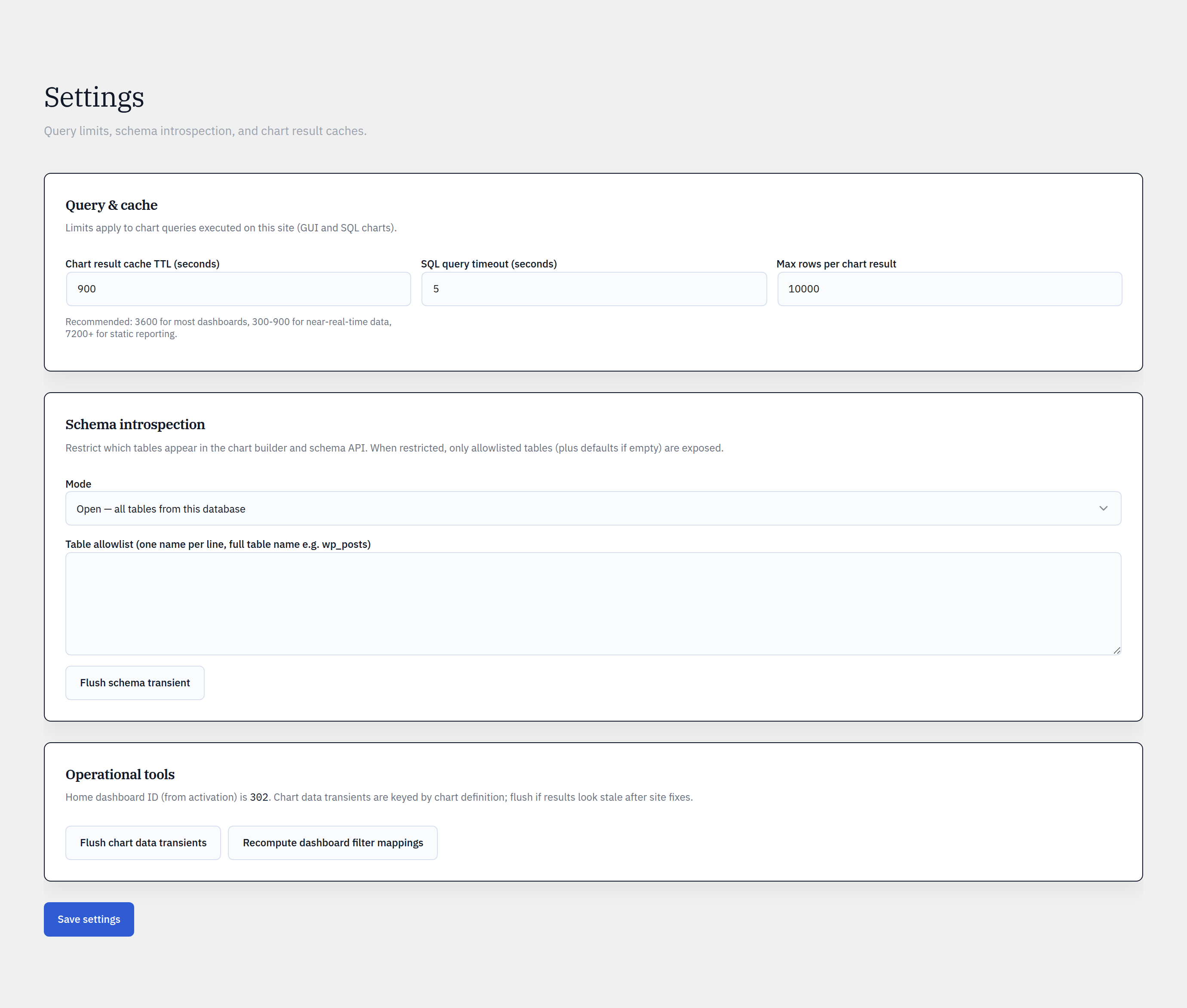
- 1Open Glimpse BI → Settings → Performance.
- 2Set Cache TTL (default 15 minutes) — how long a chart result is served before it’s refreshed.
- 3Set the stale window multiplier — how long stale data may be served past TTL while a refresh runs.
- 4Tune Query timeout and Max rows to bound expensive queries.
- 5For very heavy charts, enable Materialization (Pro) to pre-compute on a schedule.
Stale-while-revalidate
A chart result is wrapped in an envelope keyed by the chart, its definition, and its runtime parameters. Within the TTL it’s served instantly; once stale, the first viewer triggers a background refresh while others keep getting the cached value — so a slow query never blocks the page.
Stampede protection
A regeneration lock ensures only one process recomputes a given chart at a time; everyone else serves stale within the stale window or briefly waits on a cold miss. Where a persistent object cache is available the plugin uses it automatically, falling back to transients otherwise.
Reference
Bring your WordPress data into focus.
Install the free plugin and build your first chart in minutes. Upgrade to Pro when you outgrow the caps.