Documentation
SQL mode
When the GUI runs out of room, drop to a CodeMirror SQL editor. Queries are validated read-only at the AST level — never a regex — so power users get full SQL without giving up safety.
Step by step
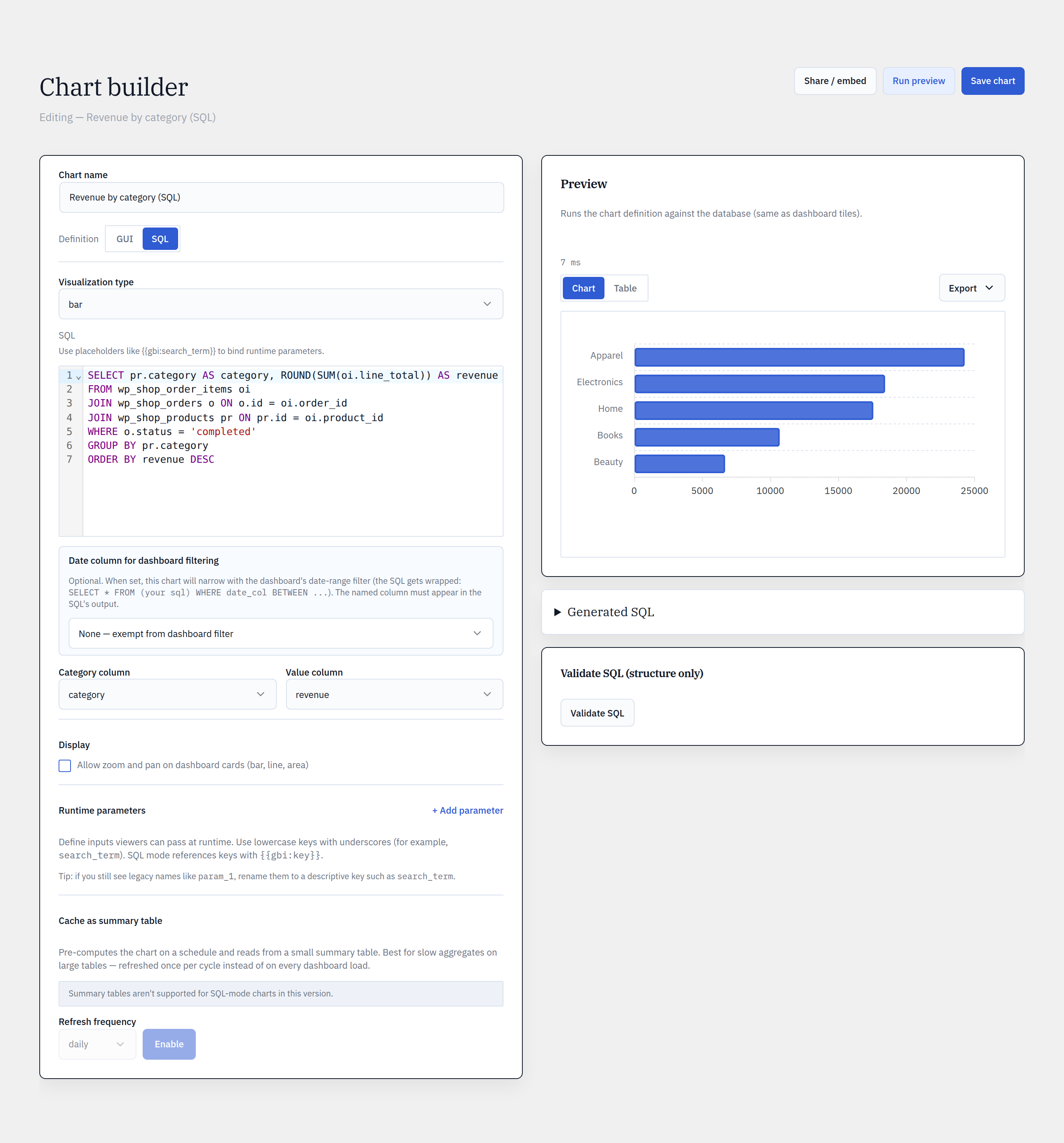
- 1Open a chart in Builder and switch to the SQL tab.
- 2Write a SELECT (or WITH … SELECT) query against your tables.
- 3Use {{gbi:param_key}} placeholders where you want runtime/dashboard-filter values injected.
- 4Click Validate SQL to parse it, then Run preview to see results.
- 5Map result columns to the chart’s dimension and measure if the builder can’t infer them.
- 6Save. SQL charts behave like any other chart in dashboards and embeds.
Read-only by AST, not regex
Every query is parsed by a real SQL parser. Only SELECT and WITH … SELECT pass; multi-statements, INTO OUTFILE, LOAD_FILE, SLEEP, and (by default) information_schema access are rejected. Defense-in-depth adds a capability check, a query timeout, and bound parameters for every value.
A one-way door
A GUI chart can graduate to SQL, but arbitrary SQL can’t be reverse-engineered back to the GUI. If a SQL chart exceeds what the GUI can express, the GUI tab greys out and offers “Fork as new chart” rather than guessing — so you never get a broken round-trip.
Reference
Bring your WordPress data into focus.
Install the free plugin and build your first chart in minutes. Upgrade to Pro when you outgrow the caps.